English
 British English
 Español
 Español (Latinoamérica)
 Français
 日本語
日本語 Português (Portugal)
 Català
 Valencià
 Arpetan
 Deutsch
 Italiano
 Suomi
Suomi Русский
 Tiếng Việt
 Türkçe
 Magyar
 한국어
한국어
Visions of the World



A to select your source device, which defaults to Wii SD Slot.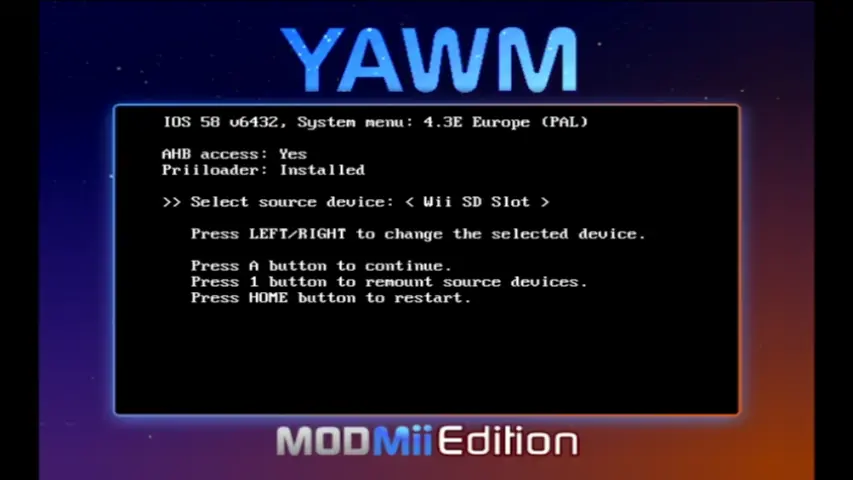
+ for two seconds to select all files.A twice to install all WADs.-1022 or -1029 while installing WADs, press - to uninstall the WAD giving the error, and try again.
Continue to setting the DNS.
Tools > Perform Online System Update
ToolsInstall WAD...WAD folder inside the WiiLink folder on your device, and install each file.Options > Configuration > Wii, and ensure Enable WiiConnect24 via WiiLink is enabled.Tools > Load Wii System Menu), then navigate to Wii Options (Wii logo in bottom left corner) > Wii Settings > WiiConnect24, and accept the EULA. If it tells you that WiiConnect24 isn’t being offered in your region, change your country to a supported one and try again (we recommend the United Kingdom for PAL, and the United States for NTSC-U). Note that, while this will display Nintendo’s EULA, by using WiiLink services you agree to our EULA, which can be found here.
For people looking to use Demae Domino’s / Just Eat: Continue to linking your console to a WiiLink Account.
For everyone else: You are done! Enjoy using WiiLink to your heart’s content!