

 English
 British English
 Español (Latinoamérica)
 Français
 日本語
日本語 Português (Portugal)
 Português (Brasil)
 Català
 Valencià
 Arpetan
 Deutsch
 Italiano
 Suomi
Suomi Русский
 Tiếng Việt
 Türkçe
 Magyar
 한국어
한국어

An Advanced Home for Accounts

If you have not done so already, visit the homepage and download the correct patcher for your operating system.
Simply download the Windows release (onefile or zip) of your choosing, and open the exe!
Download the macOS release for your Mac (x64 for Intel, arm64 for Apple Silicon), and extract it. Then, launch Terminal. Type in
xattr -d com.apple.quarantine
with a trailing space, drag the patcher app file into the terminal, and press enter. After this, you can just right click the app file and choose Open!
Install the patcher from Flathub, and launch it from your application menu!
Download the Linux release for your computer’s architecture and extract it. Then, open a terminal, and use cd to change to the directory you extracted the patcher to.
chmod +x WiiLinkPatcherGUI
./WiiLinkPatcherGUI
qt.qpa.plugin: Could not load the Qt platform plugin "xcb" in "" even though it was found.
You can resolve this by running sudo apt install libxcb-cursor-dev.
Follow the instructions here to run the Windows version of the patcher in Winlator.
Express Setup. Follow the steps below:
Custom Setup. Follow the steps below:
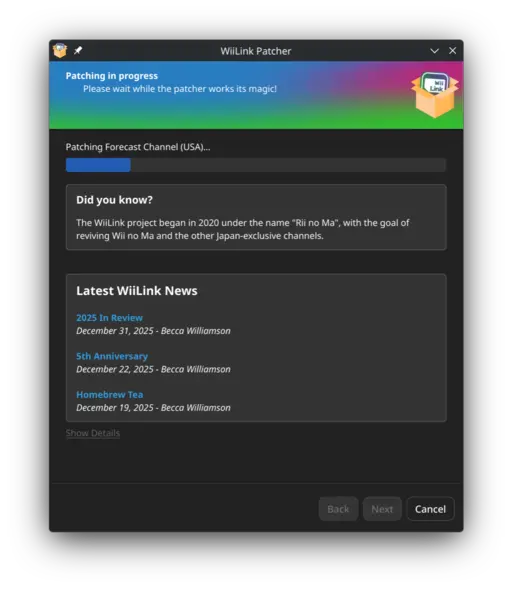
Please wait a moment for the patcher to download and patch the files on your device.
If you chose not to store files directly on your SD card / USB device, copy the WAD and apps folder from your chosen output location to the root of your SD card / USB device.
Wii and Dolphin: Continue to installing WADs.
Wii U: Continue to configuring Priiloader.





 WFC
WFC Alex
Alex